
How to Set Up IPTV on Apple TV: Complete Step-by-Step Guide (2026)
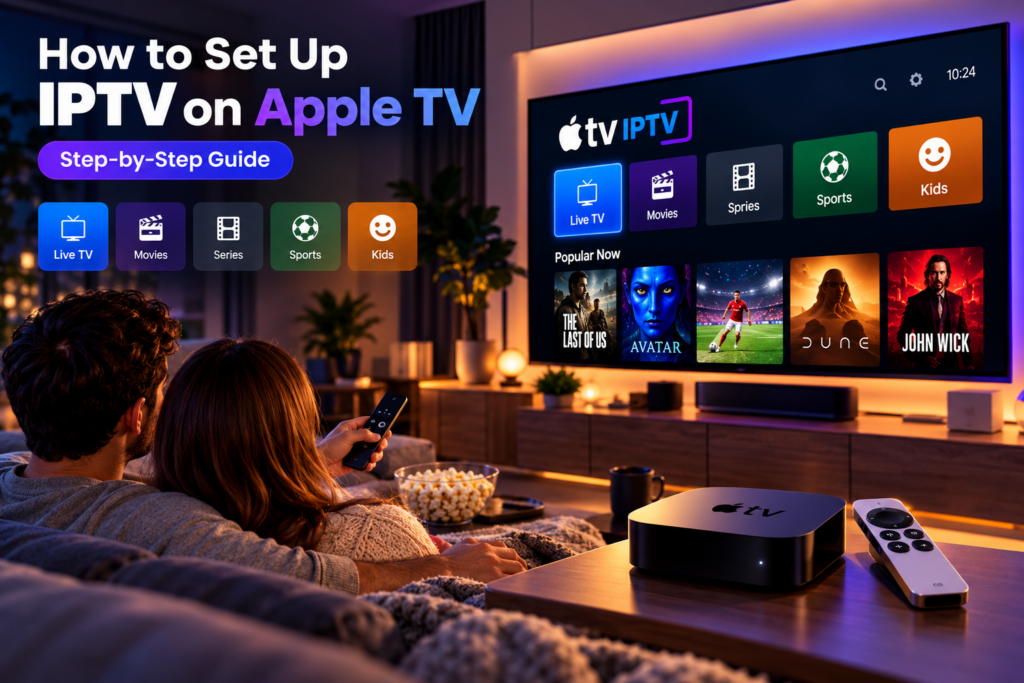
Updated: October 2026 | Reading Time: 10–12 minutes
Are you looking for an easy way to watch live television, sports, movies, and your favorite TV shows on Apple TV? You’re in the right place!
Setting up IPTV on Apple TV is easier than you might think. Whether you’re using an Apple TV 4K or Apple TV HD, you can turn your device into a powerful entertainment center with the right IPTV application and a compatible subscription.
In this complete guide, we’ll explain everything you need to know about Apple TV IPTV, including the equipment required, the best IPTV players, installation instructions, subscription setup, and solutions to common streaming problems.
1. What Is IPTV on Apple TV?
IPTV stands for Internet Protocol Television. Unlike traditional cable or satellite television, IPTV delivers video content through an internet connection.
Instead of relying on a satellite dish or cable connection, IPTV allows you to stream compatible television content directly to your device.
With an authorized IPTV service, you may be able to enjoy:
- Live TV Channels: Watch news, entertainment, documentaries, and international television.
- Live Sports: Follow football, basketball, motorsports, and other sporting events when included in your subscription.
- Movies on Demand: Access films whenever you want.
- TV Series: Discover shows and complete seasons.
- HD and 4K Streaming: Enjoy high-quality video when supported by your device, connection, and provider.
- Electronic Program Guide (EPG): Browse available television schedules.
Apple TV provides a convenient interface, responsive navigation, and excellent picture quality, making it a popular device for IPTV streaming.
2. Everything You Need Before Installing IPTV on Apple TV
Before beginning the installation process, make sure you have the necessary equipment and information.
A. Compatible Apple TV Device
You will need one of the following:
- Apple TV HD (4th generation)
- Apple TV 4K (1st generation)
- Apple TV 4K (2nd generation)
- Apple TV 4K (3rd generation)
These devices support the App Store, although individual applications may require a newer version of tvOS.
Important: Older Apple TV models without the App Store cannot install modern third-party IPTV applications directly.
B. Stable Internet Connection
A reliable internet connection is essential for smooth IPTV streaming.
Recommended connection speeds:
| Streaming Quality | Suggested Speed |
|---|---|
| SD | 5 Mbps |
| HD (720p) | 10 Mbps |
| Full HD (1080p) | 15–25 Mbps |
| 4K Ultra HD | 25–50 Mbps |
These are general recommendations, not guaranteed requirements. Actual speeds depend on video compression, bitrate, and network conditions.
For the most stable experience, consider connecting your Apple TV through Ethernet if your model supports it.
C. IPTV Subscription
To access subscription-based IPTV content, you need a valid subscription from a provider authorized to distribute the channels and programs you want to watch.
Depending on the service, you may receive:
- M3U playlist URL
- Xtream Codes-compatible login information
- Server URL
- Username and password
- EPG or TV guide URL
Keep this information private because it may provide access to your subscription.
D. IPTV Player Application
Apple TV requires a compatible application to load and play most IPTV playlists.
Popular options include:
- IPTVX
- UHF – Love your IPTV
- Other compatible IPTV players available in the Apple TV App Store
Some applications offer free features, while others require additional purchases or subscriptions.
Remember: An IPTV player and an IPTV content subscription are usually separate products. Installing an IPTV app does not automatically provide access to television channels.
E. HDMI-Compatible Television
You’ll also need a television or monitor with an HDMI connection and an HDMI cable compatible with your desired video quality.
For 4K HDR playback, ensure your Apple TV, television, and HDMI connection support the appropriate video format.
3. How to Install IPTV on Apple TV
Now that you have everything ready, follow these simple steps.
Step 1: Connect Your Apple TV
- Connect your Apple TV to your television using an HDMI cable.
- Connect the Apple TV to a power source.
- Turn on your television.
- Select the correct HDMI input.
- Follow the on-screen instructions to complete the Apple TV setup.
- Connect to your Wi-Fi network or Ethernet connection.
- Sign in to your Apple Account if required.
Once the Apple TV home screen appears, you’re ready to install your IPTV application.
Step 2: Open the App Store
Using your Apple TV remote:
- Navigate to the Apple TV home screen.
- Locate the App Store icon.
- Open the App Store.
- Select the search option.
- Search for a compatible IPTV player.
For this tutorial, we’ll use IPTVX as an example.
Step 3: Download IPTVX
- Type IPTVX into the App Store search bar.
- Find the IPTVX application.
- Select the application.
- Choose Get or the displayed purchase option.
- Wait for the installation to finish.
- Select Open to launch the application.
The application may offer additional paid features.
Step 4: Prepare Your IPTV Login Details
Before adding your subscription, locate the login information supplied by your IPTV provider.
For an Xtream-compatible connection, you typically need:
- Server address
- Username
- Password
For an M3U connection, you usually need a complete playlist URL.
Make sure all information is entered exactly as provided.
Step 5: Add Your IPTV Subscription
Open IPTVX and navigate to the playlist management section.
- Select Playlist Manager.
- Choose New Playlist.
- Select your preferred connection method.
- Enter your subscription information.
- Save the playlist.
- Wait for the application to load your content.
Once the playlist is successfully imported, available channels, movies, and television series should appear according to your provider’s offerings.
Congratulations! You’ve completed the basic Apple TV IPTV setup.
4. How to Set Up IPTV on Apple TV Using an M3U Playlist
An M3U playlist is one of the most common ways to connect an IPTV service to a compatible player.
An M3U URL tells the application where to retrieve a list of available streams.
Step-by-Step M3U Installation
Step 1: Open your IPTV application.
Step 2: Navigate to Playlist Manager or Add Playlist.
Step 3: Select M3U Playlist or M3U URL.
Step 4: Enter the complete M3U URL supplied by your provider.
Step 5: Give the playlist a recognizable name, such as “My IPTV.”
Step 6: Save your settings.
Step 7: Wait for the application to import the available channels.
If your provider supplies a separate EPG URL, you may also be able to add it to display program schedules.
Advantages of M3U Playlists
- Simple setup
- Broad compatibility
- Support for live television playlists
- Easy playlist management
- Optional EPG integration
Some M3U playlists also support on-demand content, depending on the provider and application.
5. How to Set Up IPTV on Apple TV Using Xtream Codes
Xtream Codes-compatible login is another popular connection method.
Instead of entering one long playlist URL, you enter separate account credentials.
Information Required
Your IPTV provider should supply:
Server URL: The address of your provider’s server.
Username: Your assigned IPTV account username.
Password: Your IPTV account password.
Installation Instructions
- Open your IPTV player.
- Navigate to the playlist management menu.
- Select Add Playlist.
- Choose Xtream Codes or a similarly named option.
- Enter the server URL.
- Enter your username.
- Enter your password.
- Save your information.
- Allow the application to load your content.
Depending on the player and provider, this method may automatically import live channels, movies, television series, and EPG information.
M3U vs. Xtream Codes: Which Is Better?
| Feature | M3U Playlist | Xtream-Compatible Login |
|---|---|---|
| Setup | Playlist URL | Server and credentials |
| Live TV | Supported | Supported |
| Movies and Series | Provider-dependent | Provider-dependent |
| EPG | Often requires a guide URL | May load automatically |
| Ease of Use | Simple | Simple |
| Compatibility | Widely supported | Supported by many IPTV players |
Both methods can provide a good streaming experience.
Choose the method supported by your IPTV provider and preferred application.
6. Best IPTV Apps for Apple TV in 2026
Choosing the right IPTV application can make a significant difference in your viewing experience.
Here are two popular options worth considering.
IPTVX – A Feature-Rich IPTV Player
IPTVX is designed for Apple devices and offers a modern interface for organizing television content.
Notable features include:
- M3U and Xtream-compatible playlist support
- Live TV and video-on-demand browsing
- Electronic Program Guide
- Favorites and watch history
- Multiple playlists
- Parental controls
- Support for selected HDR formats
- iCloud synchronization features
Some features require an additional purchase or subscription.
IPTVX is a strong option for users who want a polished viewing experience on Apple TV.
UHF – Love Your IPTV
UHF is another IPTV player available for Apple devices.
It offers:
- M3U and Xtream-compatible playlist support
- Modern navigation
- Search functionality
- Live TV browsing
- Movies and series organization
- Support for multiple content sources
- Free core features with optional paid upgrades
UHF is worth exploring if you prefer a clean, straightforward interface.
Which IPTV App Should You Choose?
If you want extensive customization and media-management features, consider IPTVX.
If you prefer a streamlined IPTV interface with accessible core functionality, UHF may be a good alternative.
Both applications require you to provide your own authorized content source.
7. How to Improve IPTV Streaming Quality on Apple TV
Even with a good IPTV subscription, your internet connection and device settings can affect playback.
Here are several ways to improve your streaming experience.
Use a Stable Internet Connection
A strong, reliable connection helps prevent buffering and interruptions.
If possible, use Ethernet rather than Wi-Fi.
For wireless connections, consider a 5 GHz or 6 GHz Wi-Fi network if supported by your router and devices.
Restart Your Apple TV
If an application becomes slow or stops responding, restarting your Apple TV may help.
Navigate to:
Settings → System → Restart
Wait for the device to restart before reopening your IPTV application.
Keep tvOS Updated
Software updates can improve compatibility, security, and application performance.
Navigate to:
Settings → System → Software Updates
Install available updates when appropriate.
Close Unnecessary Applications
If your Apple TV is experiencing performance issues, close any unresponsive applications and restart the device if needed.
Choose the Appropriate Video Quality
If your internet connection struggles with 4K streaming, try a lower-quality stream when available.
A stable Full HD stream often provides a better viewing experience than a constantly buffering 4K stream.
Check Your IPTV Provider
Streaming interruptions may originate from the content provider rather than your Apple TV.
If only one channel is affected, contact your provider before changing device settings.
8. Common Apple TV IPTV Problems and How to Fix Them
Although IPTV setup is generally straightforward, you may occasionally experience technical difficulties.
Here are the most common problems and their solutions.
Problem 1: IPTV App Not Showing in the App Store
Possible reasons:
- Your Apple TV model is too old.
- The app is unavailable in your region.
- Your tvOS version is unsupported.
- The app has been removed from the App Store.
Solutions:
- Check your Apple TV model.
- Update tvOS.
- Search for the application’s exact name.
- Verify compatibility on the developer’s official website.
- Try another compatible IPTV application.
Problem 2: IPTV Channels Not Loading
Possible reasons:
- Incorrect login credentials
- Expired subscription
- Incorrect server URL
- Temporary provider outage
- Network connectivity problems
Solutions:
- Check your internet connection.
- Verify your username and password.
- Confirm the server URL.
- Restart the IPTV application.
- Contact your provider if the problem continues.
Problem 3: IPTV Keeps Buffering
Buffering occurs when video data cannot be delivered consistently enough for uninterrupted playback.
Solutions:
- Test your internet speed.
- Restart your router.
- Use Ethernet when possible.
- Reduce streaming quality if supported.
- Disconnect unnecessary high-bandwidth devices.
- Check whether the provider is experiencing technical issues.
Problem 4: No Sound During Playback
Solutions:
- Check your television’s volume.
- Confirm that mute is disabled.
- Try another channel.
- Check your Apple TV audio settings.
- Restart the IPTV application.
Some audio problems may result from unsupported audio formats.
Problem 5: IPTV Playlist Is Not Working
Solutions:
- Check that the M3U URL is complete.
- Remove accidental spaces from login information.
- Verify your subscription status.
- Try importing the playlist again.
- Contact the playlist provider for assistance.
Problem 6: EPG or TV Guide Is Missing
An Electronic Program Guide displays television schedules and program information.
If your EPG is missing:
- Check whether your provider supplies EPG data.
- Refresh the playlist.
- Enter the XMLTV or EPG URL if required.
- Restart the application.
- Allow time for the guide to load.
Not every IPTV subscription includes an electronic program guide.
9. Can You Watch IPTV on Apple TV Without an IPTV Box?
Yes!
If you already own an Apple TV HD or Apple TV 4K, you generally do not need to purchase an additional IPTV box.
Your Apple TV can run compatible IPTV applications directly.
All you need is:
- A compatible Apple TV device
- An internet connection
- An IPTV player application
- A valid content source or subscription
This makes Apple TV a convenient solution for users who want to keep their entertainment setup simple.
10. Is IPTV on Apple TV Legal?
IPTV technology itself is legal in many countries.
However, the legality of an IPTV service depends on whether the provider has permission to distribute the content it offers and whether its use complies with local laws.
Before purchasing a subscription, make sure the provider has the necessary rights to offer its channels, films, and sports broadcasts.
Using an IPTV player does not automatically make an unauthorized content source legal.
Always choose legitimate services and respect copyright requirements.
11. Frequently Asked Questions About Apple TV IPTV
Can I install IPTV directly on Apple TV?
Yes. Apple TV HD and Apple TV 4K support compatible IPTV applications through the App Store. Older models without an App Store cannot install these applications directly.
What is the best IPTV app for Apple TV?
IPTVX and UHF are two popular options. The best choice depends on your preferred interface, playlist format, features, and budget.
Do I need an IPTV subscription to use Apple TV?
No. Apple TV works with many streaming applications without an IPTV subscription. However, subscription-based IPTV content requires an appropriate authorized content source.
Can I watch live football on Apple TV IPTV?
Yes, provided your IPTV service includes properly licensed sports channels or broadcasts in your region.
Does IPTV work on Apple TV 4K?
Yes. Compatible IPTV players can run on Apple TV 4K. Actual 4K streaming depends on the source content, application, device settings, and internet connection.
Can I use an M3U playlist on Apple TV?
Yes. Applications such as IPTVX support M3U playlists, allowing users to import compatible content sources.
Can I use Xtream Codes on Apple TV?
Yes. Several Apple TV IPTV players support Xtream-compatible credentials, including IPTVX and UHF.
Why does my IPTV keep buffering on Apple TV?
Buffering can result from unstable internet connectivity, network congestion, server problems, or video bitrate requirements. Testing your connection and contacting your provider can help identify the cause.
Do I need a VPN for IPTV on Apple TV?
A VPN is not normally required to use a legitimate IPTV service. Some users choose VPNs for privacy, but a VPN does not make unauthorized streaming legal and may affect connection speed.
Can I watch IPTV on multiple devices?
That depends on your provider’s subscription rules. Some services allow multiple simultaneous connections, while others limit access to one device or stream at a time.
12. Final Thoughts: Enjoy IPTV on Apple TV
Setting up IPTV on Apple TV can be a simple and convenient way to enjoy live television, movies, sports, and entertainment through a compatible streaming application.
With the right equipment, a reliable internet connection, and an authorized IPTV subscription, you can create a personalized entertainment experience directly on your Apple TV.
Whether you’re using an M3U playlist or Xtream-compatible login, the process usually takes only a few minutes once you have the necessary details.
For the best results, keep your Apple TV updated, choose a compatible IPTV player, and use a stable internet connection.
Ready to Get Started with Apple TV IPTV?
Discover our Apple TV IPTV subscription plans and explore the entertainment options available for your device.
Our team is here to help you understand device compatibility, installation, and subscription setup.
Explore Our IPTV Plans Today!
These official resources help readers complete the setup:
- Apple Support – How to Download Apps on Apple TV
- IPTVX – Official M3U and Xtream Setup Guide
- IPTVX – App Store
- UHF – App Store